Line
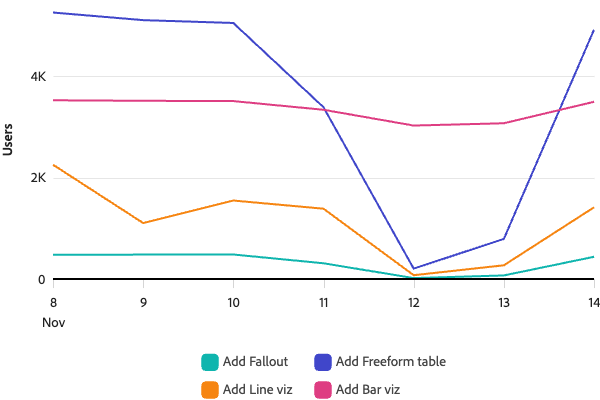
The Line component is used to display line charts. You can specify the type of data that the line is being trended over with the scaleType prop. You can add Trendlines and MetricRanges as children to show trends in your data or include a ranged area of data in addition to the line. Use LinePointAnnotation to label specific static points on the line. It's also possible to define tooltips and on-click popovers for the line using the ChartTooltip and ChartPopover components respectively as children.
Examples
Basic Line Chart
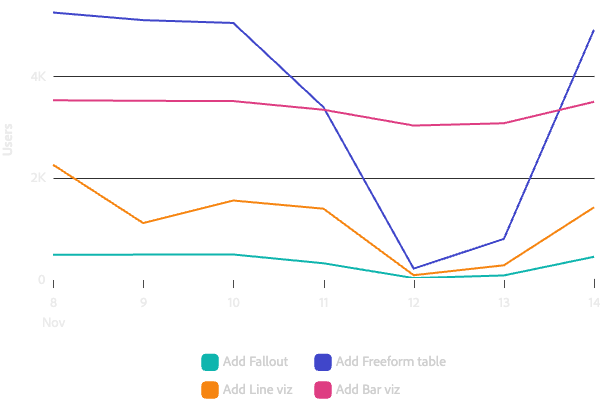
<Chart data={data}>
  <Axis position="bottom" labelFormat="time" ticks baseline />
  <Axis position="left" grid title="Users" />
  <Line metric="users" color="event" />
  <Legend position="bottom" />
</Chart>
Line with Tooltip and Click Handler
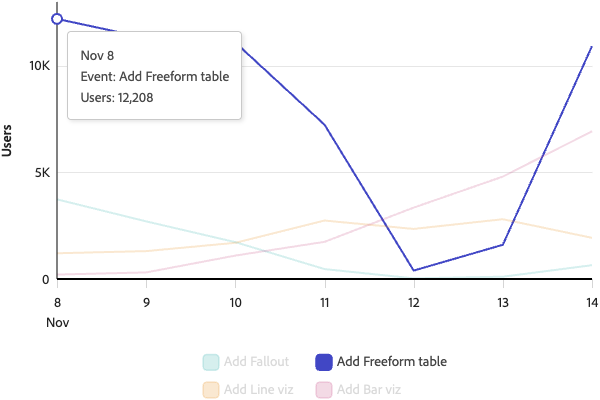
<Chart data={data}>
  <Axis position="bottom" labelFormat="time" ticks baseline />
  <Axis position="left" grid title="Users" />
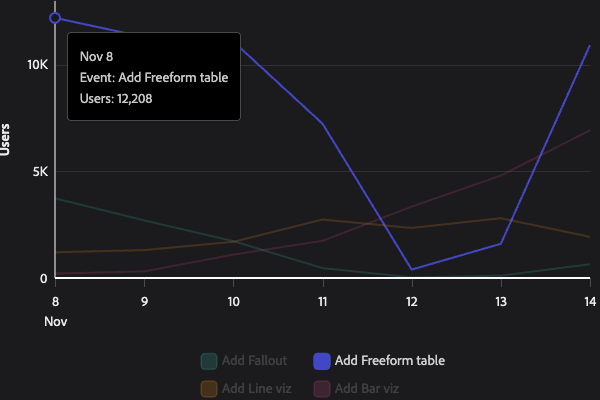
  <Line metric="users" color="browser" onClick={(event, data) => console.log('Clicked:', data)}>
    <ChartTooltip>
      {(datum) => (
        <div>
          <div>{datum.date}</div>
          <div>Event: {datum.event}</div>
          <div>Users: {Number(datum.users).toLocaleString()}</div>
        </div>
      )}
    </ChartTooltip>
  </Line>
  <Legend position="bottom" />
</Chart>
Line with custom context menu (right-click)
Use the onContextMenu prop to show your own context menu when the user right-clicks a point. The callback receives the native MouseEvent (for positioning and preventDefault()) and the datum for the clicked point.
const [menu, setMenu] = useState({ x: 0, y: 0, datum: null, open: false });

<Chart data={data}>
  <Axis position="bottom" labelFormat="time" ticks baseline />
  <Axis position="left" grid title="Users" />
  <Line
    metric="users"
    color="event"
    onContextMenu={(event, datum) => {
      event.preventDefault();
      setMenu({ x: event.clientX, y: event.clientY, datum, open: true });
    }}
  >
    <ChartTooltip>{(d) => <div>{d.date} – {Number(d.users).toLocaleString()} users</div>}</ChartTooltip>
  </Line>
  <Legend position="bottom" />
</Chart>
{menu.open && (
  <YourContextMenu
    x={menu.x}
    y={menu.y}
    datum={menu.datum}
    onClose={() => setMenu((m) => ({ ...m, open: false }))}
  />
)}
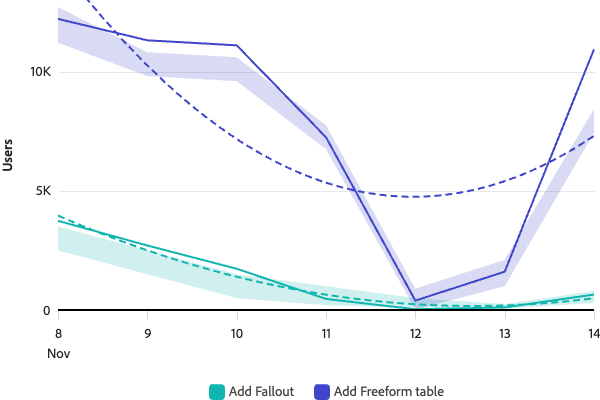
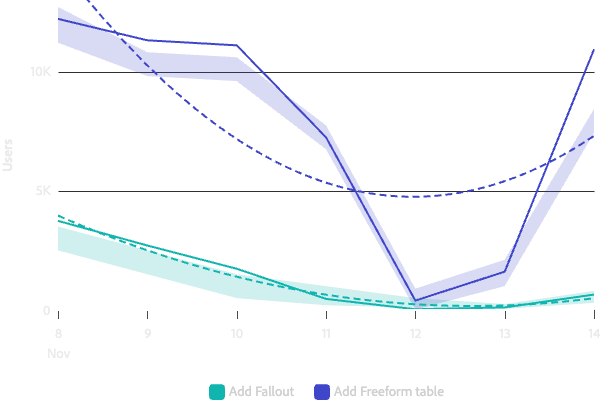
Line with Trendline and MetricRange
<Chart data={data}>
  <Axis position="bottom" labelFormat="time" ticks baseline />
  <Axis position="left" grid title="Users" />
  <Line metric="users" color="event">
    <Trendline method="quadratic" />
    <MetricRange upperMetric="upperBound" lowerMetric="lowerBound" />
  </Line>
</Chart>
Props
| name | type | default | description |
|---|---|---|---|
| children | ChartTooltip | ChartPopover | LinePointAnnotation | MetricRange | Trendline | – | Optional elements that can be rendered within the chart. Use these to add tooltips, popovers, annotations, metric ranges, or trendlines to your line chart. |
| color | string | 'series' | The key in the data that defines what color that line will be. This is not a color value itself but rather the key in the data that will map to the colors scale. For example: A line chart that has a different line and color for each operating system, color would be set to the name of the key in the data that defines which operating system it is (color="operatingSystem"). |
| dimension | string | 'datetime' | The key in the data that the metric is trended against. This is the x-axis for a standard line chart. |
| lineType | string | {value: LineType | number[]} | – | If a string is provided, this string is the key in the data that lines will be grouped into series by. Each unique value for this key in the provided data will map to a line type from the lineTypes scale. If an object is provided with format {value: 'solid' | 'dashed' | 'dotted' | number[]}, this will set the line type for all lines. |
| metric | string | 'value' | The key in the data that is used for the value of the data point. |
| name | string | – | Line name. Useful for if you need to traverse the chart object to find this line. |
| onClick | (event: MouseEvent, data: any) => void | – | Callback function that will be executed when a point or section of the line is clicked. Receives the mouse event and the data point as arguments. |
| onContextMenu | (event: MouseEvent, data: any) => void | – | Callback function that will be executed when a point or section of the line is right-clicked. Receives the native mouse event (e.g. for clientX/clientY and preventDefault()) and the data point. Use this to show your own custom context menu anchored to the clicked point. |
| onMouseOver | function | – | Callback function that will be executed when a point or section of the line is hovered. |
| onMouseOut | function | – | Callback function that will be executed when a point or section of the line is no longer hovered. |
| padding | number | – | Sets the chart area padding. This is a ratio from 0 to 1 for categorical scales (point) and a pixel value for continuous scales (time, linear) |
| scaleType | 'linear' | 'time' | 'point' | 'time' | Type of data that the line is trended over. If using 'time', the dimension data must be in milliseconds since Jan 1, 1970 UTC (epoch time). If you are plotting this line along with other marks that are ordinal (ex. bar), then you must use a 'point' scale for the two to line up correctly. |
| staticPoint | string | – | Key in the data that if it exists and its value is true, a visible point will be shown on the line for that data item. |
LinePointAnnotation
The LinePointAnnotation component can be passed into Line as a child. This allows you to add text labels at specific points on the line, making it easier to call out key values. It requires staticPoint to be set on the parent Line so there are anchor points to attach labels to.
The component supports an anchor prop to define where annotations should be placed relative to their corresponding points. You can pass a single position or an array of positions. When an array is provided, each position is tried in order until one fits within the chart bounds without overlapping other annotations or points. If a label cannot be placed without overlapping, it will not be displayed. This means line point annotations should be considered "nice to have" supplemental information.
Example
<Chart data={data}>
  <Axis position="bottom" labelFormat="time" ticks baseline />
  <Axis position="left" grid title="Users" />
  <Line color="series" dimension="datetime" metric="value" scaleType="time" staticPoint="staticPoint">
    <LinePointAnnotation textKey="label" matchLineColor />
  </Line>
  <Legend position="bottom" />
</Chart>
Props
| name | type | default | description |
|---|---|---|---|
| anchor | LabelAnchor | LabelAnchor[] | ['right', 'top', 'bottom', 'left'] | Specifies where to position the annotation relative to the data point. Possible values include 'top', 'bottom', 'left', 'right', 'top-left', 'top-right', 'bottom-left', and 'bottom-right'. When an array is provided, each position is tried in order until one fits within the chart bounds and doesn't overlap with other annotations or points. If no position fits, the annotation is not displayed. This is true even if only one position is supplied. |
| matchLineColor | boolean | false | When true, the annotation text color matches the line/series color. When false, uses the default text color from the theme. |
| textKey | string | metric key | The key in the data that contains the text to display for each annotation. Defaults to the metric key from the parent Line. |
Best Practices
-
Scale Type Selection
- Use
scaleType="time"for time-series data - Use
scaleType="linear"for continuous numerical data - Use
scaleType="point"when working with categorical data or when combining with ordinal marks like bars
- Use
-
Interactivity
- Add tooltips using
ChartTooltipfor better data exploration - Use
onClickhandlers for interactive features like drilling down into data - Consider using
ChartPopoverfor displaying detailed information on click
- Add tooltips using
-
Data Analysis
- Use
Trendlineto show data trends - Add
MetricRangeto display confidence intervals or bounds - Use
staticPointto highlight specific data points of interest - Add
LinePointAnnotationto label static points with data values
- Use
Accessibility
The Line component follows accessibility best practices:
- Uses semantic SVG elements for better screen reader support
- Supports keyboard navigation when interactive elements are added
- Color combinations should meet WCAG contrast requirements