Axis
The Axis component is used to display the axis, axis labels and grid marks. An axis is not required if you would like something like a sparkline visualization.
<Chart data={data}>
  <Axis position="bottom" granularity="hour" grid={false} title="My Axis Title" />
</Chart>
Props
| name | type | default | description |
|---|---|---|---|
| position* | 'left' | 'bottom' | 'top' | 'right' | – | Sets where the axis will be displayed. |
| name | string | – | Sets the name of the component. |
| baseline | boolean | false | Adds a baseline rule for this axis. |
| baselineOffset | number | 0 | Adds an offset to the baseline. If baseline is false then this prop is ignored. If baseline is drawn relative to a categorical axis, this prop is ignored. |
| children | AxisAnnotation | ReferenceLine | – | Child components that add supplemental content to the axis |
| granularity | 'second' | 'minute' | 'hour' | 'day' | 'week' | 'month' | 'quarter' | 'year' | 'day' | Sets the granularity of the primary axis labels for time axis. If this axis is not for a time axis, this prop is ignored. |
| grid | boolean | false | Displays gridlines at each tick location. |
| hasPopover | boolean | false | When true, enables linking axis thumbnails to the chart’s bar popover. Clicking an AxisThumbnail on this axis opens the same ChartPopover that is defined on a Bar mark, anchored to the matching bar. This flow applies only to Bar charts, and requires Bar to have a ChartPopover child. |
| hideDefaultLabels | boolean | false | Hides the axis labels. If labels have been explicitly added using the labels prop, these will still be visible. |
| labelAlign | 'start' | 'center' | 'end' | 'center' | Sets the alignment of axis labels. center will set the align to center for horizontal axes and the baseline to middle for vertical axes. start will set the align to left for horizontal axes and the baseline to top for vertical axes. end will set the align to right for horizontal axes and the baseline to bottom for vertical axes. |
| labelFontWeight | FontWeight | 'normal' | Sets the font weight of axis labels. |
| labelFormat | 'duration' | 'linear' | 'percentage' | 'time' | – | Sets the format of the axis labels. duration will display seconds value in a m:ss format if less than 3,600 and in a H:mm:ss format if >= 3,600 (ex: 3 = 0:03, 36 = 0:36, 366 = 6:06, 3661 = 1:01:01). |
| labelLimit | number | undefined (180 Vega default) | Sets the maximum allowed length, in pixels, of axis tick labels. Labels that exceed this limit will be truncated. If not specified, Vega uses its default of 180 pixels. |
| labelOrientation | 'horizontal' | 'vertical' | 'horizontal' | Sets the orientation of the label. If using vertical, subLabels will not be displayed. |
| labels | ({value: string | number, label?: string, align?: LabelAlign, fontWeight?: FontWeight} | number | string)[] | – | Explicitly sets the axis labels (controlled). Providing a Label object allows for more control over the label display. Either an object or the domain value (string | number) can be provided as entries to the array. Just providing the domain values makes it possible to simply control the labels that should be added without altering the display value or styling of the label. Providing an object as the label entry opens up control of the alignment, font-weight and display value of the label. fontWeight and align will default to the axis font weight and label alignment. label is equal to value by default. The following are semantically equivalent: [{value: 2, label: "2", align: 'center', fontWeight: "normal"}] = [{value: 2}] = [2] |
| tickCountLimit | number | – | Sets the upper limit on the number of axis ticks. Base tick, typically 0, is not included in the count. e.g. 0, 1, 2, 3 is considered 3 ticks. Note: The final tick count may vary based on Vega's automatic calculations to create visually pleasing values. |
| tickCountMinimum | number | – | Sets the minimum number of axis ticks. The default is 2. Smaller charts may want to use a minimum of 3 instead to show a more accurate representation of the data. |
| numberFormat | 'currency' | 'shortCurrency' | 'shortNumber' | 'standardNumber' | string | 'shortNumber' | Sets the format for numeric axis labels. This format must be a d3-format specifier (Example: '$.2f' = $5,432.10). Number locale will be applied to the number format. The following presets are also provided: currency ($2.50), shortCurrency ($20M), shortNumber (3B), standardNumber (2,500). Only valid if labelFormat is linear or undefined. |
| range | [number, number] | – | The minimum and maximum values for the axis, for example: [-10, 10]. Note: This prop is only supported for axes with linear or time scale types. |
| subLabels | {value: string | number, subLabel: string, align?: LabelAlign, fontWeight?: FontWeight}[] | – | Adds sublabels below the axis labels. If the provided value is not within the axis domain, it won't be added. Note that if labelOrientation is set to vertical, subLabels will not be displayed. |
| ticks | boolean | false | Displays ticks at each label location. |
| tickMinStep | number | – | The minimum desired step between axis ticks, in terms of scale domain values. For example, a value of 1 indicates that ticks should not be less than 1 unit apart. Note: This prop is only supported for linear axes. |
| title | string | string[] | – | Sets the axis title. If an array of strings is provided, each string will render on a new line. |
| truncateLabels | boolean | false | If the text is wider than the bandwidth that is labels, it will be truncated so that it stays within that bandwidth. This is only valid for categorical axes (ex. dimension axis on a bar chart). This setting is also ignored if the labels prop is used to control the axis labels. |
| currencyLocale | string | – | Set the locale for currency formatting (affects symbol position and spacing). ⚠️ Limited Support: Support for and changes to this prop will be limited. Only use this if you need to override the currency locale formatting from the chart locale. Important: This prop requires 'currencyCode' prop to take effect. Example: 'en-US' ($100) vs 'de-DE' (100 $) |
| currencyCode | string | – | Override the currency symbol from the chart locale with a specific currency code. ⚠️ Limited Support: Support for and changes to this prop will be limited. Only use this if you need to override the currency symbol from the chart locale. Important: This prop requires 'currencyLocale' prop to take effect. |
Content
The Axis component supports additional content as children.
AxisAnnotation
An AxisAnnotation can be used to add icons to an axis. These are typically used to provide information in a tooltip or popover for a specific data point or range.
Example
const axisAnnotationProps = {
	dataKey: 'annotations',
	color: 'gray-600',
}

<Chart data={data}>
    <Axis position="bottom" granularity="hour" grid={false} title="My Axis Title">
        <AxisAnnotation {...axisAnnotationProps} />
    </Axis>
</Chart>
// Todo axisannotation image
AxisAnnotation Props
| name | type | default | description |
|---|---|---|---|
| children* | ChartPopover | ChartTooltip | - | Optional content of the AxisAnnotation |
| color | Color | string | 'gray-600' | The color to use for the annotation icons and range lines if a color isn't specified in options, or multiple annotations fall in the same icon. CSS color names and spectrum color names are supported. |
| dataKey | string | 'annotations' | The data field where the annotation ids are listed for each data point. |
| format | 'span' | 'summary' | 'span' if using a time based scale, otherwise 'summary' | Show annotations as a horizontal span of icons or a single summary icon. |
| name | string | A generated string that includes the axis name and the index of the annotation. | Unique name for the annotation to be used as an identifier. |
| offset | number | 80 | Adds pixels to offset the annotation from the bottom of the bottom of the chart. |
| options | { id: string, color: Color | string }[] | [] | Options specific to each annotation in the data. |
AxisAnnotation Options
An array of option objects can be passed to the prop options to control individual annotations using an id.
| name | type | default | description |
|---|---|---|---|
| id | string | - | The id of the annotation to apply the options to. |
| color | Color | string | - | The color of the annotation icon and range lines. CSS color names and spectrum color names are supported. |
const axisAnnotationProps = {
	dataKey: 'annotations',
	options: [
		{ id: '1', color: 'magenta-600' },
		{ id: '2', color: 'fuchsia-600' },
		{ id: '3', color: 'yellow-600' },
		{ id: '4', color: 'celery-600' },
	],
}

<Chart data={data}>
    <Axis position="bottom" granularity="hour" grid={false} title="My Axis Title">
        <AxisAnnotation {...axisAnnotationProps} />
    </Axis>
</Chart>
ReferenceLine
A ReferenceLine can be used to add a vertical or horizontal line to a chart as a reference.
<Chart data={data}>
  <Axis position="bottom" granularity="hour" grid={false} title="My Axis Title">
    <ReferenceLine value={0.5} icon="date" />
  </Axis>
</Chart>
//todo add reference line image
ReferenceLine Props
| name | type | default | description |
|---|---|---|---|
| value* | number | string | – | Sets the value on the axis that the reference line will be drawn at. |
| color | SpectrumColor | string | 'gray-800' | Sets the color of the reference line. |
| icon | SupportedIcon | string (svg path) | – | Adds an icon on the axis for the reference line. Either the name of a supported svg icon can be provided or an svg path string can be provided. For correct sizing, custom svg paths should be defined within a square bounding box with coordinates ranging from -1 to 1 along both the x and y dimensions. |
| iconColor | SpectrumColor | string | 'gray-800' | Sets the color of the icon. |
| label | string | – | Adds a text label on the axis for the reference line. This will be positioned outside of the icon if both an icon and a label are provided (e.g., beneath the icon if the axis position is bottom, left of the icon if the axis position is left). |
| labelColor | SpectrumColor | string | 'gray-800' | Sets the color of the label. |
| labelFontWeight | string | 'normal' | Sets the font weight of the label. |
| layer | 'back' | 'front' | 'front' | Sets the layer that the reference line gets drawn on. If set to back, the reference line will be drawn behind all data marks (bars, lines, etc.). If front, the reference line will be drawn in front of all data marks. |
| position | 'before' | 'after' | 'center' | 'center' | Set the reference line position to either center on the value, or to be between the value and the value before or after. Typically used in Bar visualizations where spacing is more likely to exist between values. |
Icons
An icon can be used as a label for the reference line. Either the name of a supported svg icon can be provided or an svg path string can be provided. For correct sizing, custom svg paths should be defined within a square bounding box with coordinates ranging from -1 to 1 along both the x and y dimensions.
Supported Icons:
- date
If there is a Spectrum Icon that is not supported, submit an issue to this repo to get it added.
AxisThumbnail
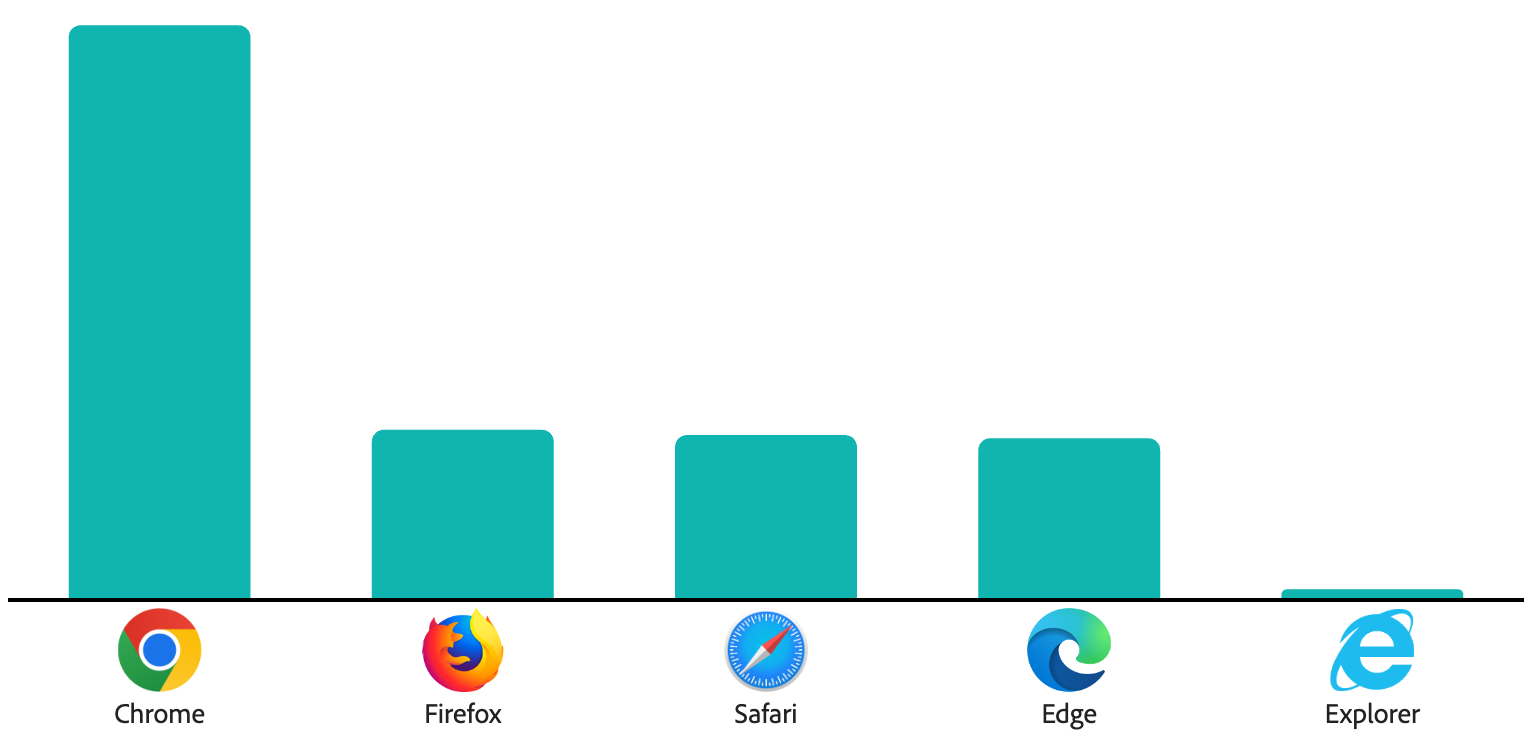
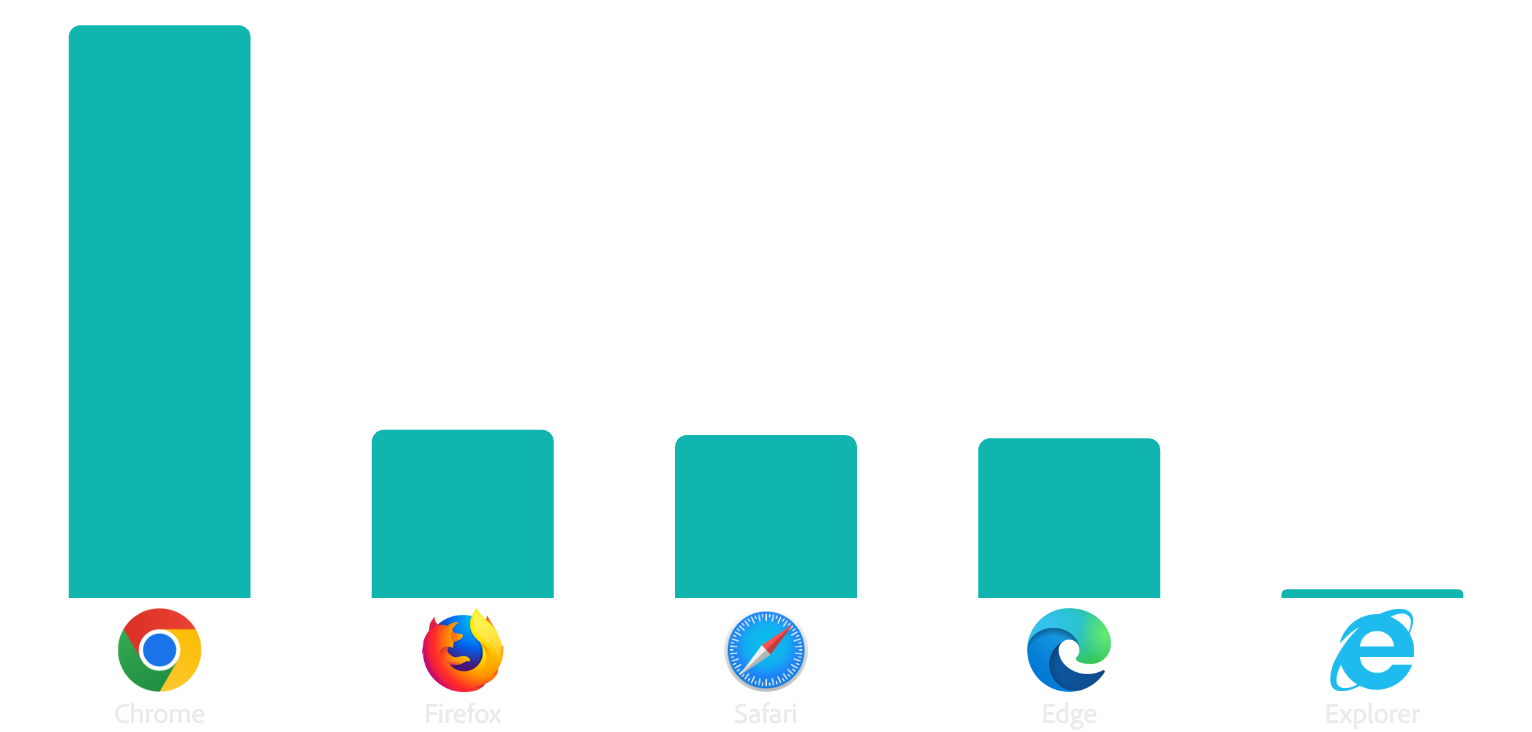
An AxisThumbnail can be used to display thumbnail images on axis labels. This component enhances axis labels with visual thumbnails from your data, providing additional context and visual appeal to categorical axes.
const data = [
    {"browser": "Chrome", "downloads": 27000, "thumbnail": "/chrome.png"},
    {"browser": "Firefox", "downloads": 8000, "thumbnail": "/firefox.png"},
    {"browser": "Safari", "downloads": 7750, "thumbnail": "/safari.png"},
    {"browser": "Edge", "downloads": 7600, "thumbnail": "/edge.png"},
    {"browser": "Explorer", "downloads": 500, "thumbnail": "/explorer.png"}
]

<Chart data={data}>
  <Bar dimension="browser" metric="downloads" />
  <Axis position="bottom" baseline>
    <AxisThumbnail urlKey="thumbnail" />
  </Axis>
</Chart>
AxisThumbnail Props
| name | type | default | description |
|---|---|---|---|
| urlKey | string | 'thumbnail' | The data field key that contains the URL of the thumbnail image. |
Supported Scale Types
Axis thumbnails are currently supported only on band scales, which are typically used for categorical dimensions in bar charts and similar visualizations. Linear and time scales do not support thumbnails.
Thumbnail Behavior
- Dynamic Sizing: Thumbnails automatically resize based on the available bandwidth of the scale, with a maximum size of 42px and minimum size of 16px
- Visibility: Thumbnails become invisible when the available space is less than 16px to prevent overcrowding
- Positioning: Thumbnails are positioned relative to the axis
Data Requirements
- Each data point must include a field containing the URL of the thumbnail image
- The URL should point to a valid image file (PNG, JPG, SVG, etc.)
- Images should be square and appropriately sized for display (recommended: 32x32px or larger)
- Ensure the image URLs are accessible and load properly
- For best results, use consistent image dimensions across all thumbnails
Example Use Cases
- Browser logos in web analytics charts
- Product images in e-commerce dashboards
- Country flags in geographic data visualizations
- Brand logos in marketing performance charts
- Category icons in organizational charts
Notes
- Thumbnails are automatically hidden when there isn't enough space to display them properly
- The component automatically handles label positioning to prevent overlap with thumbnails
- Thumbnails are rendered as Vega image marks and support all standard image formats
ChartTooltip
A ChartTooltip can be used as a child of Axis to display tooltips when hovering over axis thumbnails. When a thumbnail is hovered, bars with matching dimension values are automatically highlighted.
ChartTooltip must be used together with AxisThumbnail as a child of Axis, otherwise the tooltip will not appear. The tooltip only works with bar charts and always highlights bars by dimension, regardless of the highlightBy or targets props.
const data = [
    {"browser": "Chrome", "downloads": 27000, "thumbnail": "/chrome.png"},
    {"browser": "Firefox", "downloads": 8000, "thumbnail": "/firefox.png"},
    {"browser": "Safari", "downloads": 7750, "thumbnail": "/safari.png"},
    {"browser": "Edge", "downloads": 7600, "thumbnail": "/edge.png"},
    {"browser": "Explorer", "downloads": 500, "thumbnail": "/explorer.png"}
]

<Chart data={data}>
  <Bar dimension="browser" metric="downloads" />
  <Axis position="bottom" baseline>
    <AxisThumbnail urlKey="thumbnail" />
    <ChartTooltip>
      {(datum) => {
        const d = datum[GROUP_DATA]?.[0] ?? datum;

        return (
          <div>
            <div>Browser: {d.browser}</div>
            <div>Total Downloads: {d.downloads}</div>
          </div>
        );
      }}
    </ChartTooltip>
  </Axis>
</Chart>
ChartTooltip Props
| name | type | default | description |
|---|---|---|---|
| children* | (datum: Datum) => ReactNode | – | Callback function that receives the datum and returns the tooltip content. For thumbnail tooltips, the datum may include a GROUP_DATA property containing all datums for the hovered dimension when multiple data points share the same dimension value (e.g., in stacked or dodged bar charts). |
| excludeDataKeys | string[] | – | The keys in the data that will disable the tooltip if they have truthy values. |
| highlightBy | 'series' | 'dimension' | 'item' | string[] | – | Not applicable for axis tooltips. This prop is ignored when ChartTooltip is used as a child of Axis. Axis tooltips always highlight bars by dimension. |
| targets | ('dimensionArea' | 'item')[] | – | Not applicable for axis tooltips. This prop is ignored when ChartTooltip is used as a child of Axis. Axis tooltips always target the thumbnail. |
Requirements
- Requires AxisThumbnail:
ChartTooltipmust be used together withAxisThumbnailas a child ofAxis. WithoutAxisThumbnail, the tooltip will not appear. - Bar Charts Only: This feature only works with bar charts.
- Dimension-Based Highlighting: When hovering over a thumbnail, bars with matching dimension values are automatically highlighted. The
highlightByandtargetsprops are ignored and have no effect.